Disruptions & impact
A disruption is any unplanned event that prevents components from operating as expected. Disruptions can be triggered in two ways:
- Manually—an Organization admin registers the disruption.
- Auto-detected—the number of issues received by the status page exceeds configured thresholds.
While any organization user can view disruptions, only Organization admins can register the disruptions manually, update, clear, and delete them.
Any active disruptions—either auto-detected or registered manually—appear under the Status page tab in the Impacting state. Ongoing Major outage disruptions also appear on the Disruption wall.
Every disruption is associated with one or more origin components. Multiple active disruptions can share an origin component. A disruption's severity is translated into the component's status. When several disruptions affect a component directly or through its subcomponents, the most critical severity determines its status. When no active disruptions affect a component, its status returns to Operational.
Disruption wall
The Disruption wall tab focuses on ongoing Major outage disruptions. It displays the number of ongoing major disruptions and lists the matching disruption cards so teams can quickly review organization-wide outage impact.
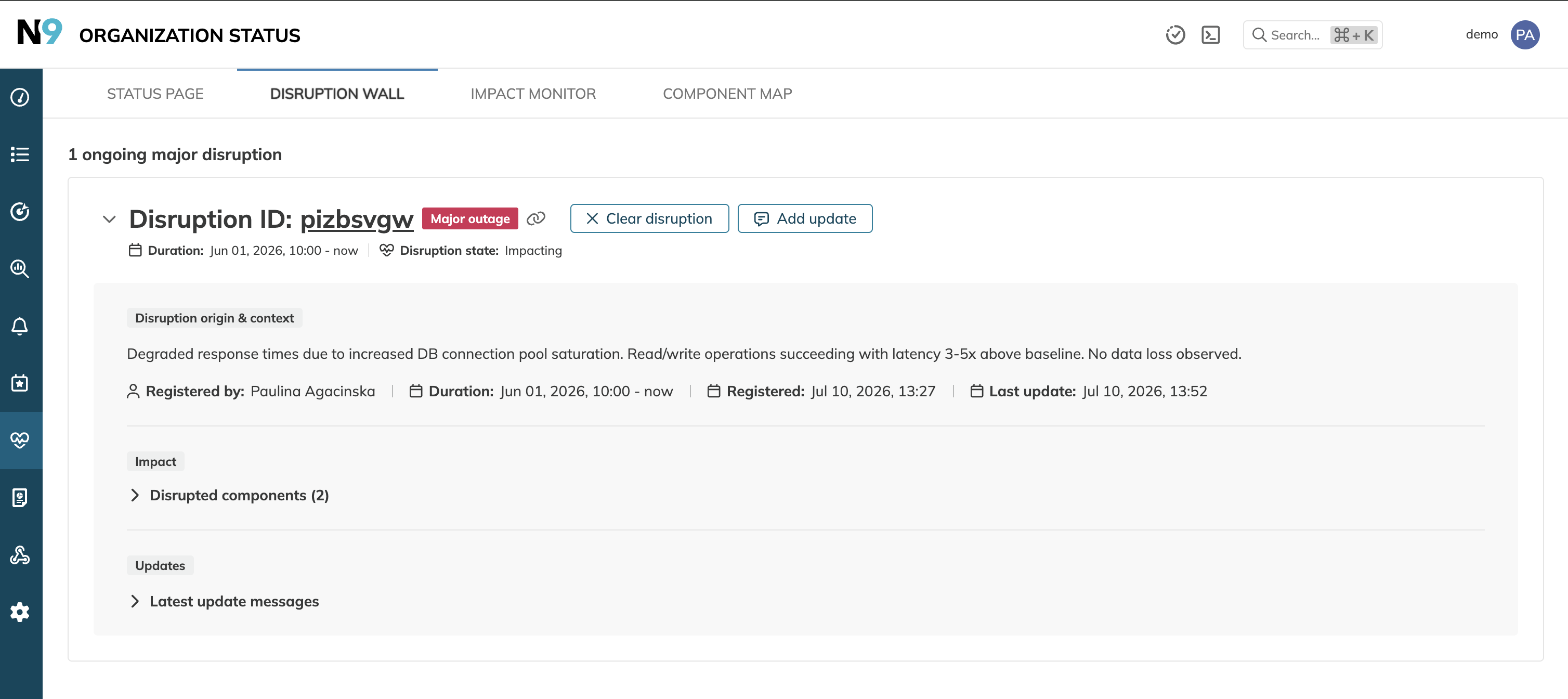
Each disruption card includes the disruption ID, severity, duration, state, origin context, affected components, and latest updates. Expand the card to review more context directly on the wall, copy a direct link to the disruption, or click the disruption ID to open its details page.
Organization admins can also clear an ongoing major disruption directly from the card.
Only ongoing Major outage disruptions appear on the wall. Degraded performance disruptions and cleared disruptions remain available from the Status page, component details pages, and disruption details pages.
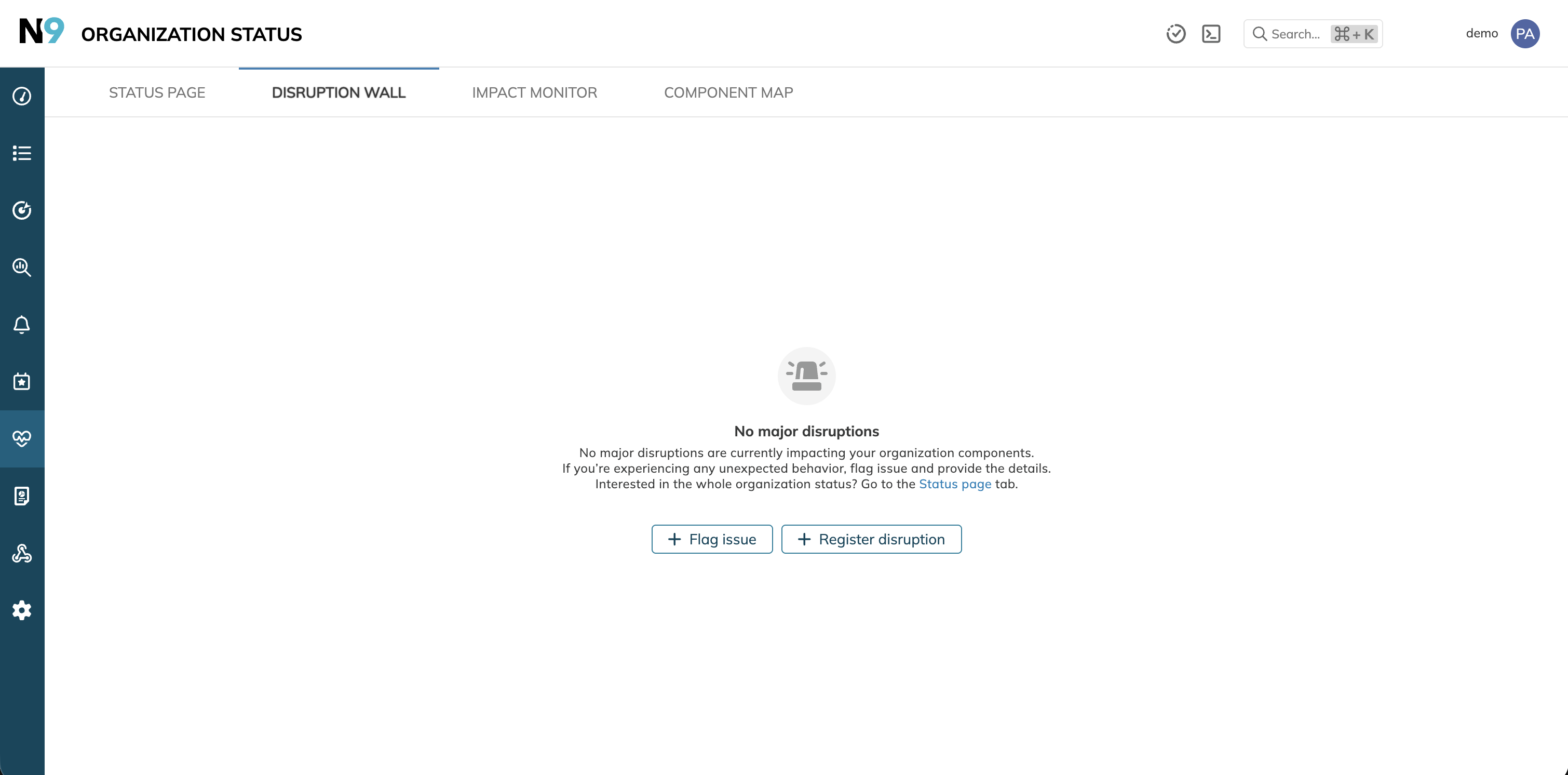
When there are no ongoing major outages, the Disruption wall shows a No major disruptions empty state.
Disruption auto-detection
The system automatically switches components to Degraded performance when specific issue thresholds are met.
These thresholds are based on issues from three sources:
- User flags
- Nobl9 SLO alerts
- External telemetry signals
The default thresholds are:
- Five issues in 5 minutes for user flags or external telemetry.
- Two issues in 5 minutes for Nobl9 SLO alerts.
The default values of the issue thresholds prioritize early detection out of the box. Customization is available to ensure the detection sensitivity aligns with your organization's specific patterns and operational requirements. To request a threshold change, contact Nobl9 support.
The Major outage status can only be applied manually by an Organization admin.
Disruption management Admin access
Organization admins can register, update, clear, and delete disruptions manually.
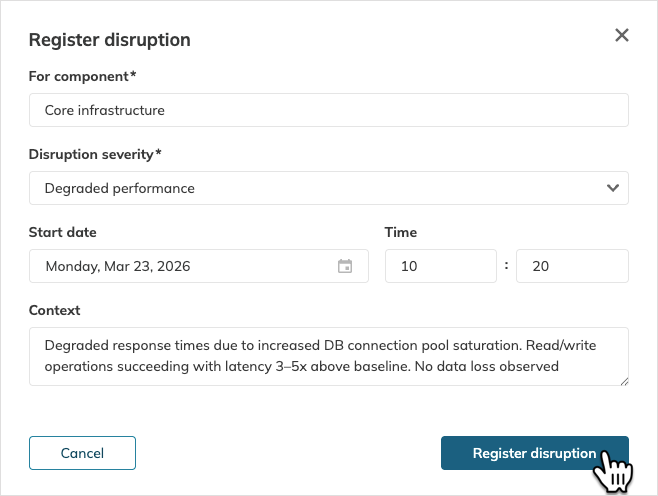
Registering a disruption forces a component status change immediately, without waiting for the threshold to be exceeded. To register a disruption, follow these steps:
- Go to the Status page or the details of the required component.
- Click Register disruption.
- Fill in the disruption form with the necessary details:
- Select the impacted component.
- Set disruption severity—Degraded performance or Major outage.
- Specify the disruption start date and time.
- Provide context for this disruption—your observations, assumptions, loss, etc.
- Click Register disruption.
Once a disruption is registered, the following options become available:
| Button | Action | Result |
|---|---|---|
| Add update | Add a timeline message, change severity, or adjust the disrupted component selection | Changes appear in the Event timeline table. Severity or component selection changes update the displayed status of affected components |
| Clear disruption | Conclude the disruption's impact on the component once the disruption is addressed | The change appears in the Event timeline table. This disruption's record remains in the Disruption registry. Affected component statuses are recalculated from remaining impacting disruptions. This action is final and cannot be reverted. |
| Delete | Permanently remove the disruption from the system | The disruption and all contributing issues (if any) are permanently removed with no trace kept in the Disruption registry. Affected component statuses are recalculated from remaining impacting disruptions. This action is final and cannot be reverted. |
For ongoing Major outage disruptions, Organization admins can also clear the disruption directly from the Disruption wall.
Adding disruption updates
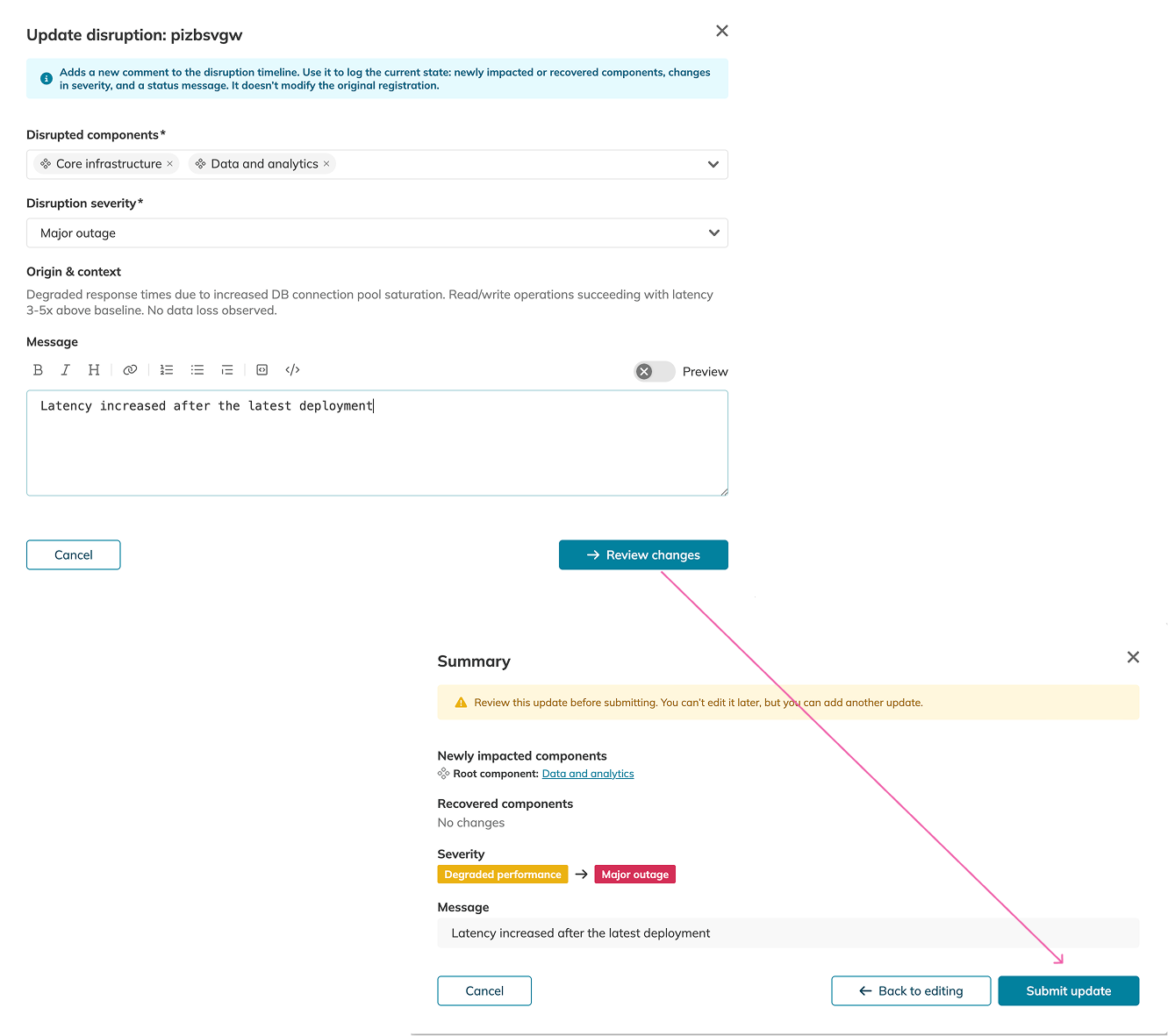
Use Add update to record how an ongoing disruption changes over time. An update can include any combination of:
- An update message for the disruption timeline.
- A severity change between Degraded performance and Major outage.
- Changes to the disrupted component selection.
The update flow appends a new entry to the disruption timeline. It does not rewrite the original disruption registration. Before submitting the update, Nobl9 shows a Summary with the update message, severity, and component selection changes. Click Submit update to add the entry to the timeline.
Components added to the disrupted component selection become disruption origin components, and Nobl9 includes their upstream component paths in the affected scope. Components removed from the selection can only be current origin components. At least one disrupted component must remain selected, and the same component cannot be added and removed in one update.
Impact on component status
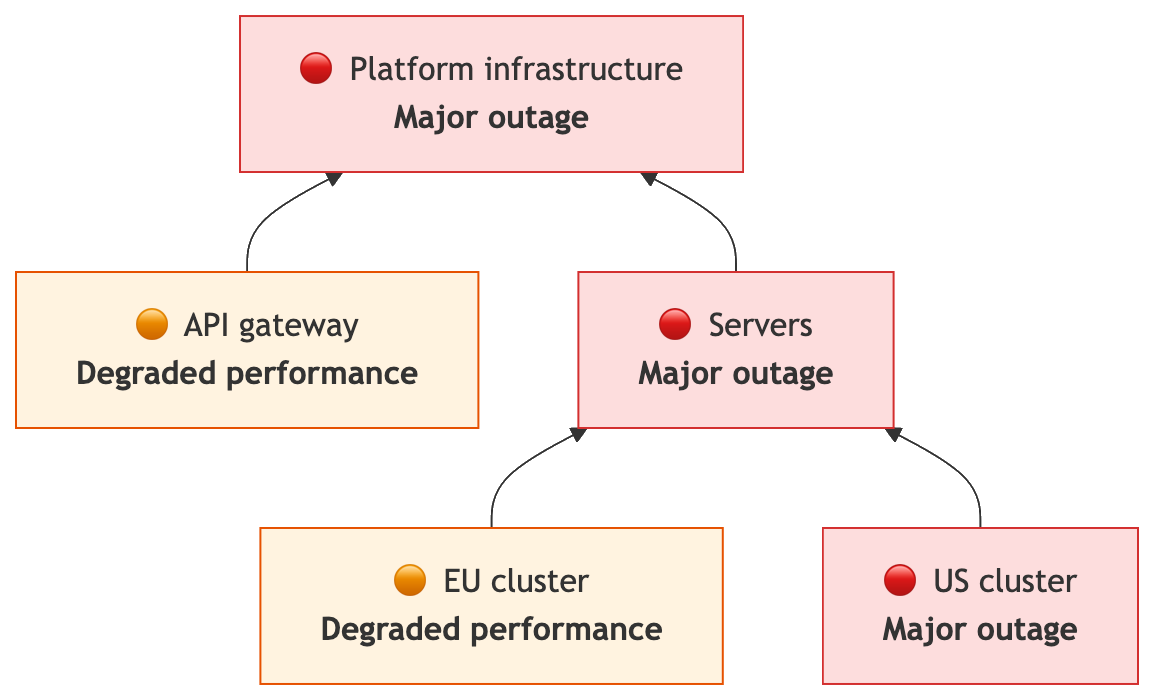
Nested components automatically pass their status upstream. If a component has children, it inherits the most severe status of any individual child. In the following example:
Platform infrastructure
└── API gateway
└── Servers
    └── EU cluster
    └── US cluster
If API gateway experiences a Degraded performance, the parent Platform infrastructure will immediately reflect that same status.
The following sections explain status propagation in detail and describe what happens when a disruption is cleared or deleted.
Status propagation
Component status reflects the most severe active disruption that affects it directly or propagates from a child component.
For example, if API gateway and EU cluster are at Degraded performance, and US cluster is at Major outage:
- Servers inherits the Major outage status.
- Platform infrastructure also inherits the Major outage status, regardless of the degraded API gateway.
Disruption clearance or deletion
When a disruption is cleared or deleted, it no longer impacts the component.
- Individual components: The component returns to Operational only when no other active disruption affects it. Otherwise, it reflects the most severe remaining disruption.
- Nested components: Parent components reflect the most severe remaining disruption that affects them directly or through a subcomponent.
In the following example, each individual component has one active disruption:
| Restored component | Resulting statuses | Diagram |
|---|---|---|
| US cluster → Operational | • Servers → Degraded performance • Platform infrastructure → Degraded performance | 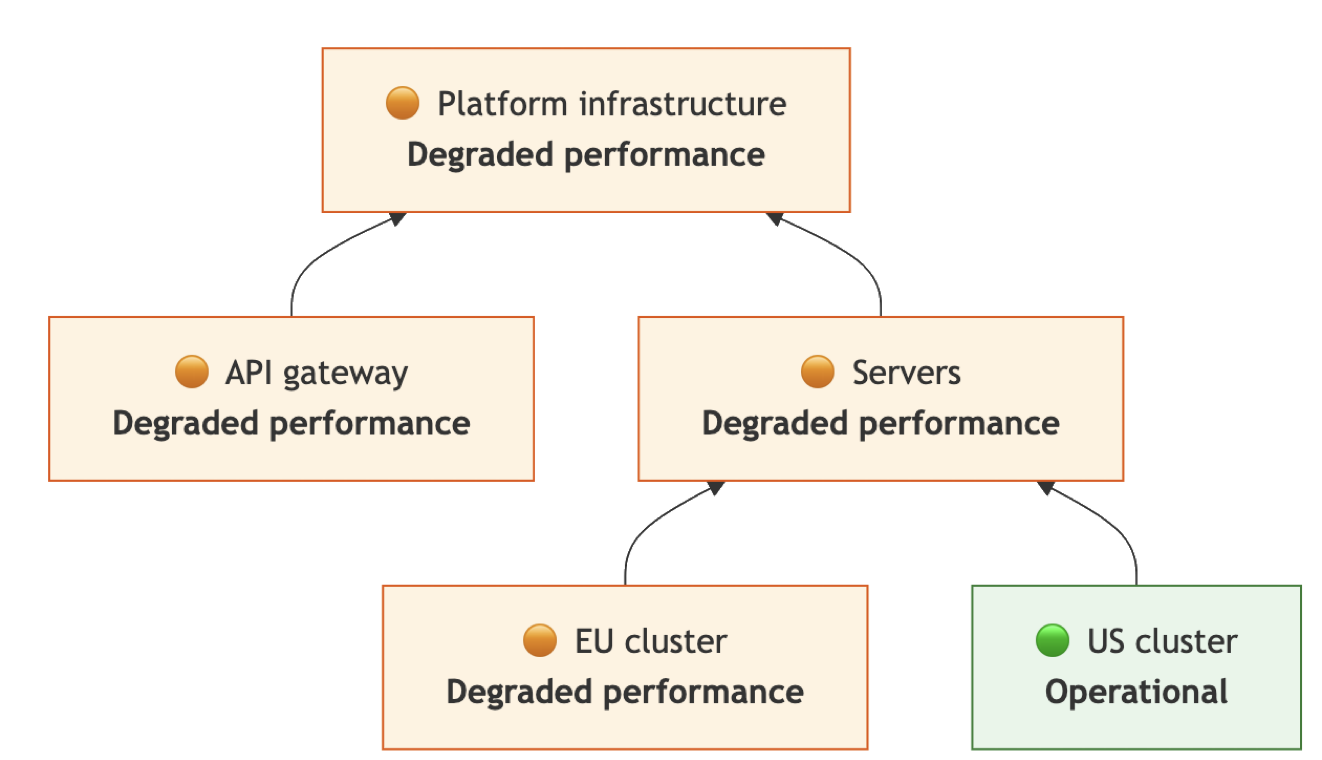 |
| EU cluster → Operational | • Servers → Major outage • Platform infrastructure → Major outage | 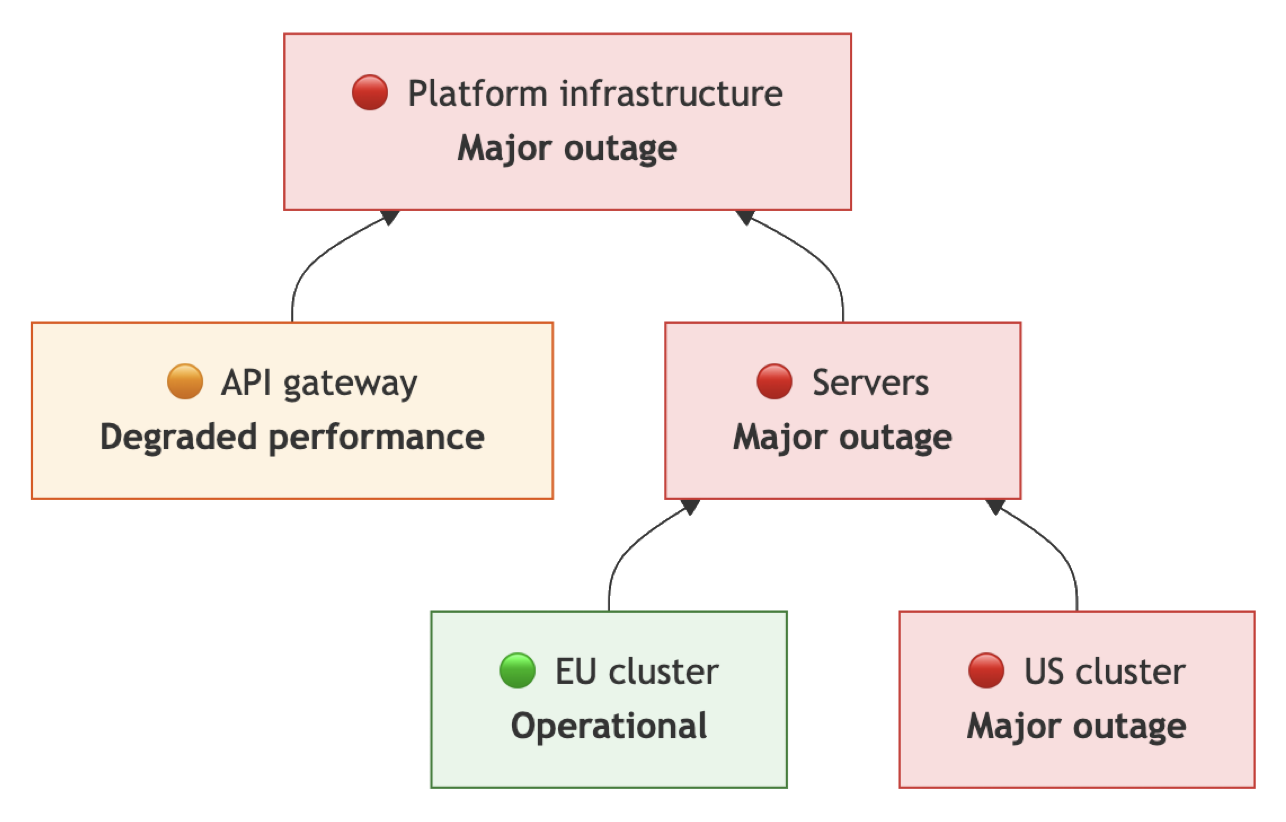 |
| • US cluster → Operational • EU cluster → Operational | • Servers → Operational • Platform infrastructure → Degraded performance | 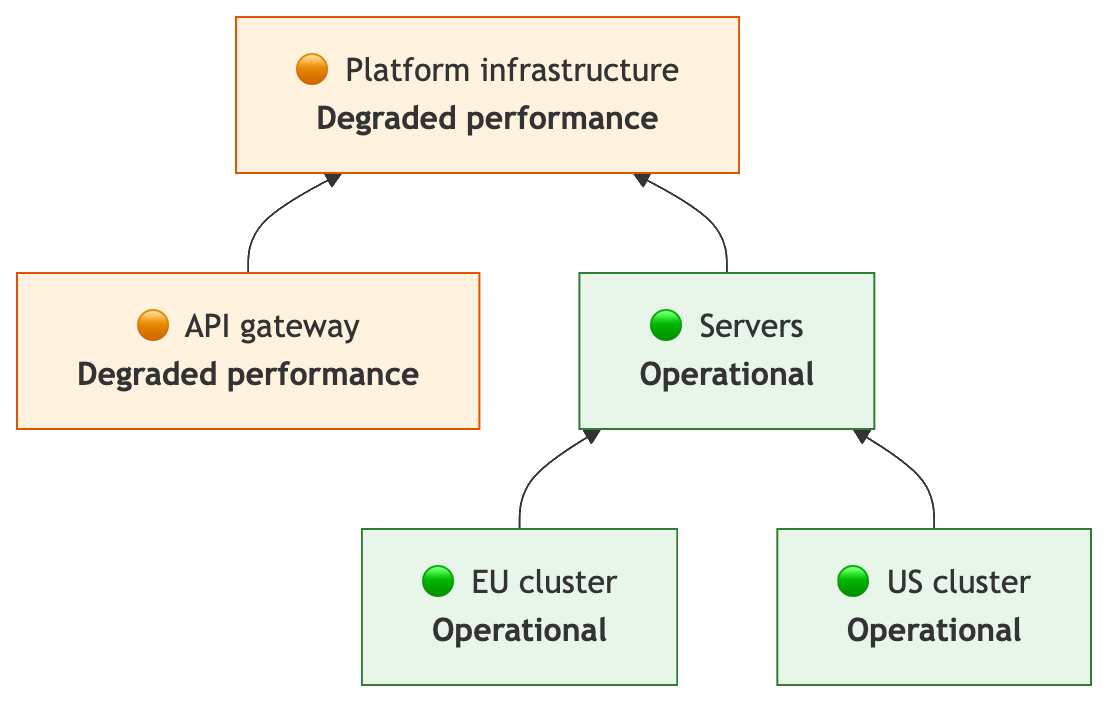 |
Impact monitor Admin access
The Impact monitor tab provides an aggregated view of all issues and components impacted by issues or disruptions within your organization.
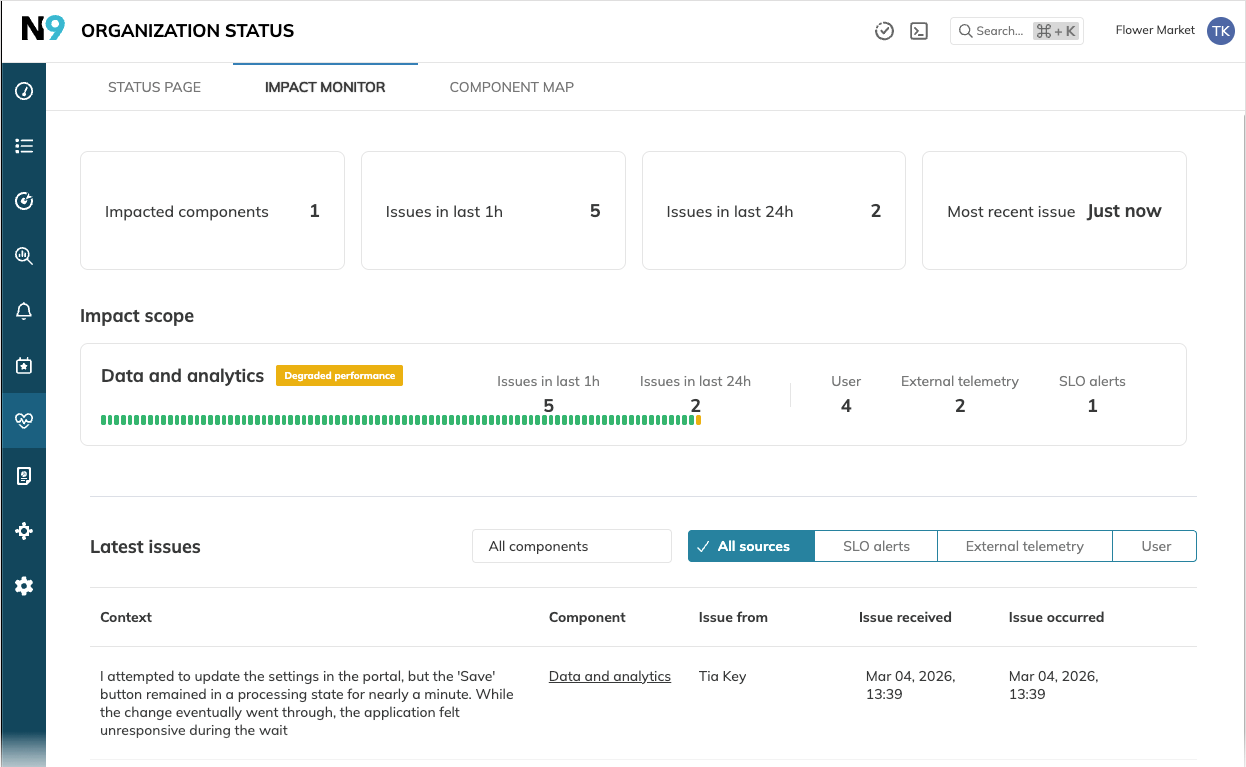
- Summary tiles display the total count of impacted components and time-based issue volume breakdowns.
- The Impact scope table lists impacted components and their associated issues (if any).
- The Latest issues table provides detailed, chronological information on every issue, with the newest entries at the top.
Organization admins can permanently delete issues.
- No backward impact: A deleted issue from an SLO alert or external telemetry does not impact its source.
- Threshold impact: The deleted issue no longer counts toward the issue threshold.
- No auto-clearance: Deleting a contributing issue does not clear or delete the disruption.

