Replay list
The Events > Replay tab shows queued, ongoing, and finished Replays in one table, with a row for each Replay run. It includes standard and composite SLOs. Recalculations triggered by budget adjustments are not listed.
You can also open the list from the Job Status widget by clicking Open full Replay list.
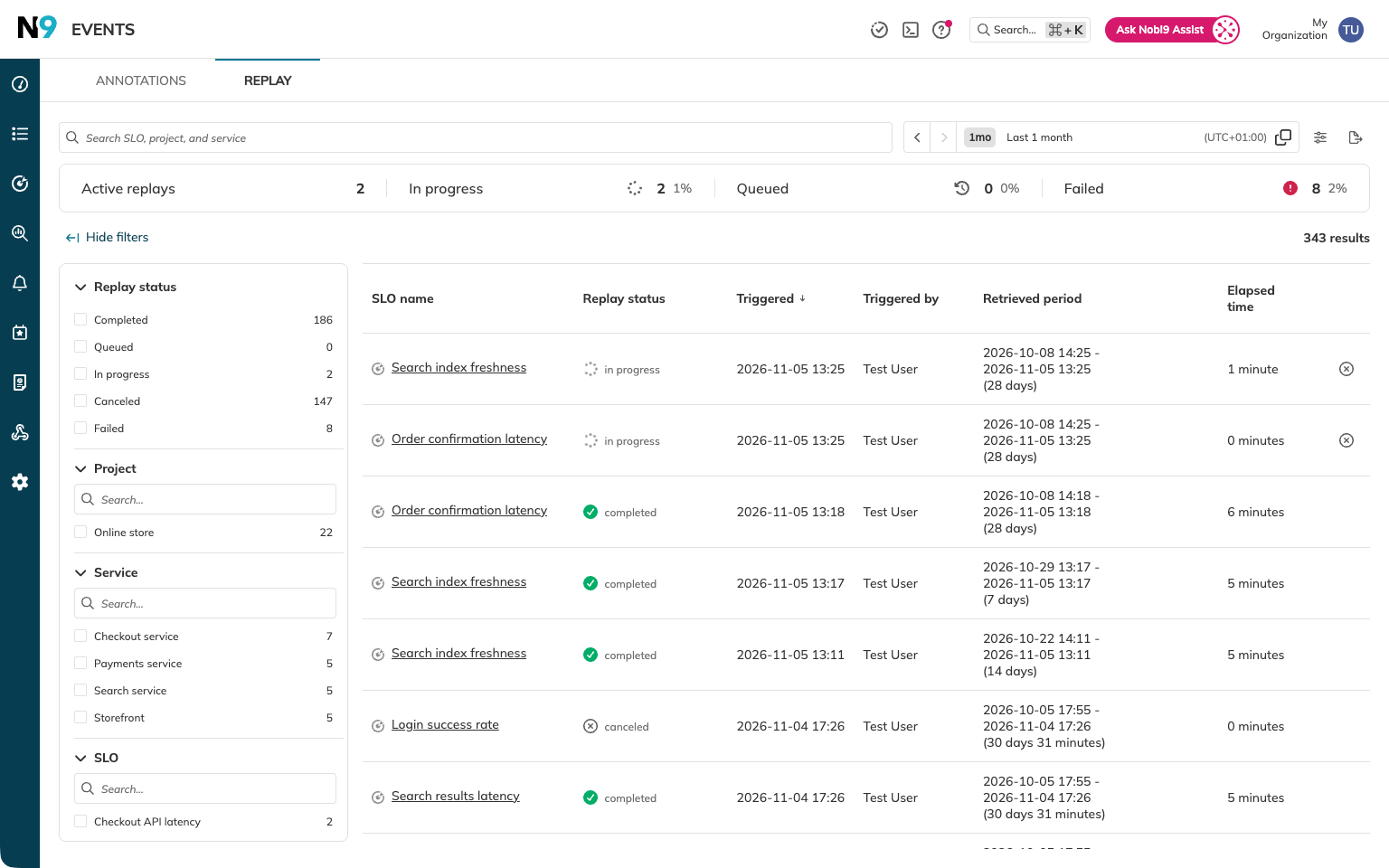
Each row shows the SLO, Replay status, who triggered it and when, the retrieved period, and elapsed time. Click the SLO name to open its details. Elapsed time excludes time spent in the queue. Use Customize columns to show or hide columns, including Project and Service. Replays stay in the list until their SLO is deleted.
Finding Replays
Use the search field to find Replays by SLO, project, or service name. Click Show filters to filter by Replay status, Project, Service, SLO, or Triggered by. Click Reset filters to clear your filter selection.
By default, the list shows the Last 1 month, sorted by Triggered, newest first, with ongoing and queued Replays at the top. You can change the sort order and bookmark or share the URL to retain your search, filters, sort, and time window.
The time window applies to finished Replays based on when they were Triggered. Queued and ongoing Replays are included regardless of the time window. Use the time picker to select a preset or a Custom range of up to 3 months, and the arrows to shift the window.
The list refreshes automatically. Loading more rows pauses updates; change the search, filters, sort, or time window to resume them. If you reach the row limit, narrow your filters.
Canceling and removing Replays
The list provides the same Replay termination actions as the Job Status widget:
- For a queued Replay, click the remove icon in its row and confirm with Remove. This removes all queued Replays of the same SLO.
- For an ongoing standard Replay, click the cancel icon and confirm with Cancel. Cancellation is available only during data import. The canceled Replay stays in the list.
Active composite Replays cannot be canceled. Actions are available only with the required role in the SLO's project.
Exporting to CSV
Click the export icon next to Customize columns to download replay-list.csv.
The export uses your current search, filters, time window, sort order, and visible columns, including matching rows that haven't been loaded in the table. Dates use your selected time zone.
If the export limit is reached, narrow your filters to export the remaining Replays.
Permissions and visibility
You can see full Replay details only for SLOs in projects you can view. Replays from other projects appear as Data retrieval, with their status, triggered time, and elapsed time, but no SLO details or actions. Ask your Organization admin for access to the associated project.
These Replays are included in the counters and status filter counts, but are hidden when you search or filter by Project, Service, SLO, or Triggered by.

