Working with the app
To start using the Nobl9 Alerts app:
- Download the application from the Apple App Store.
- Log in using your Nobl9 credentials.
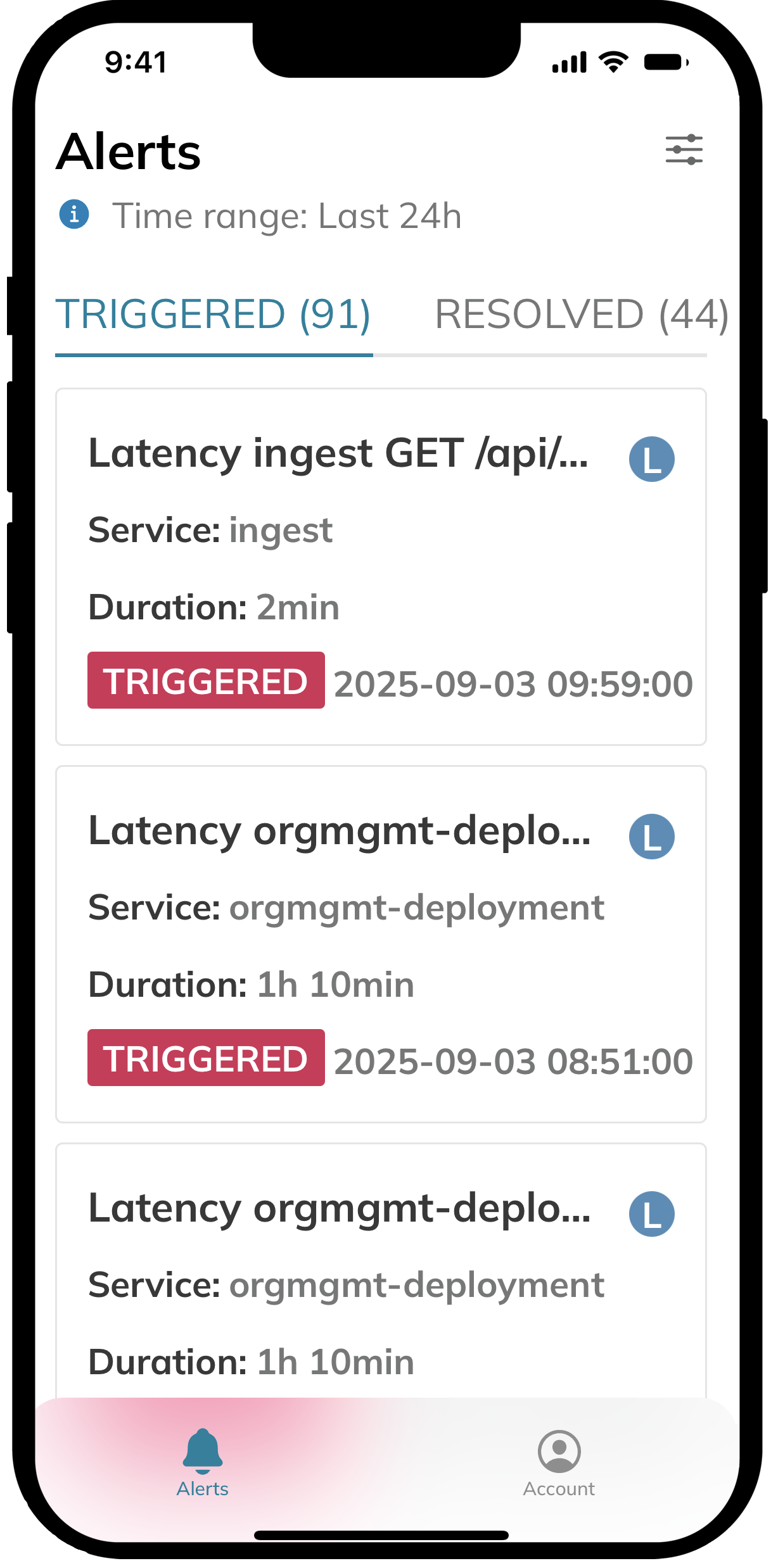
Once you log in, the app displays a list of SLOs in your default organization. The list opens on the TRIGGERED tab, showing SLOs that are currently experiencing issues:
- TRIGGERED
- RESOLVED
You can also view the list of resolved SLOs on the RESOLVED tab.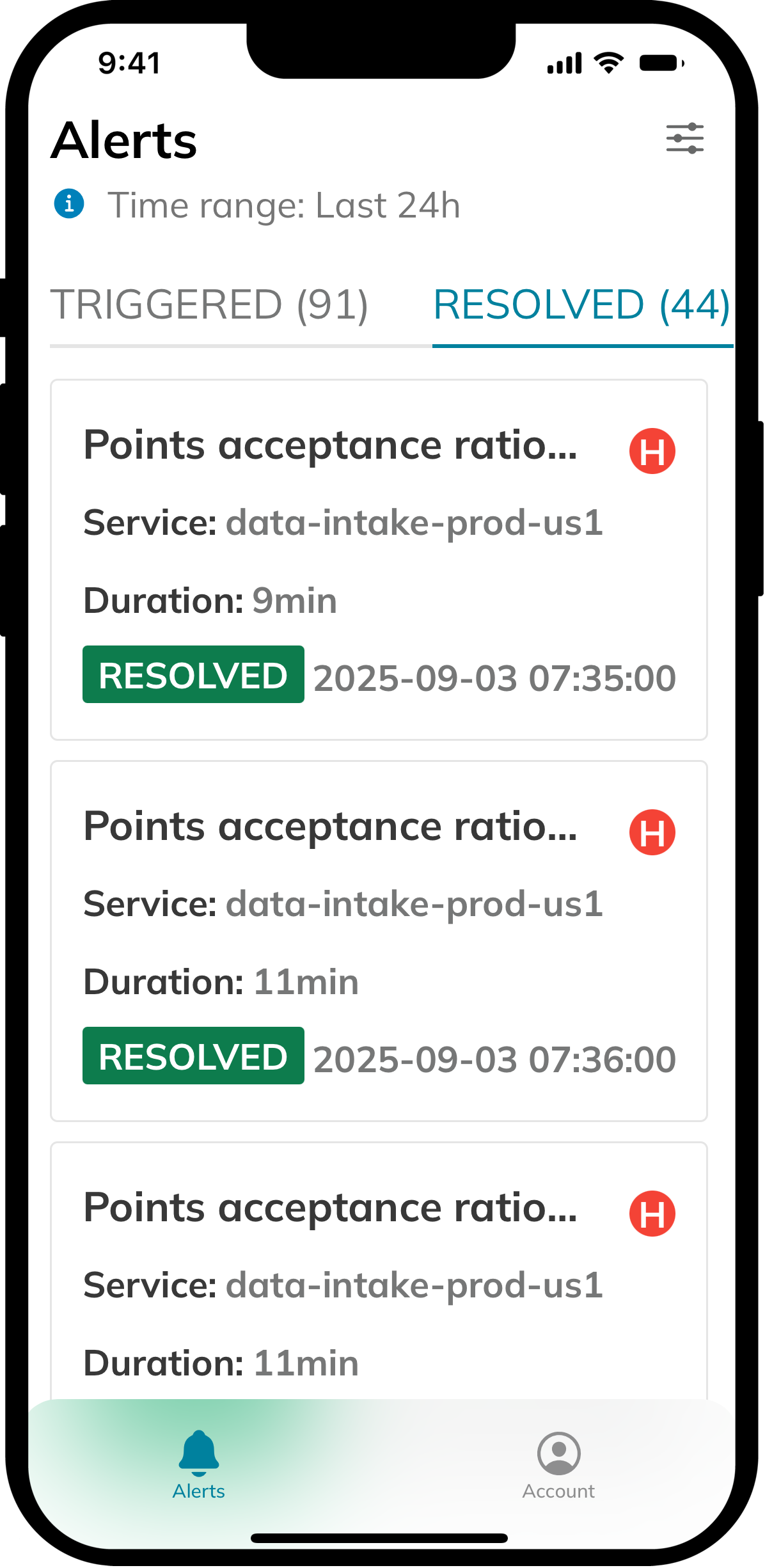
Each SLO in the list shows the following details:
- SLO name
- Service containing the alerting SLO
- Alert duration
- Alert status
- Time when the alert was triggered
- Alert policy severity
Sorting and filtering
By default, the application displays triggered and resolved alerts of all severities from the last 24 hours. The most severe and recent alerts appear at the top.
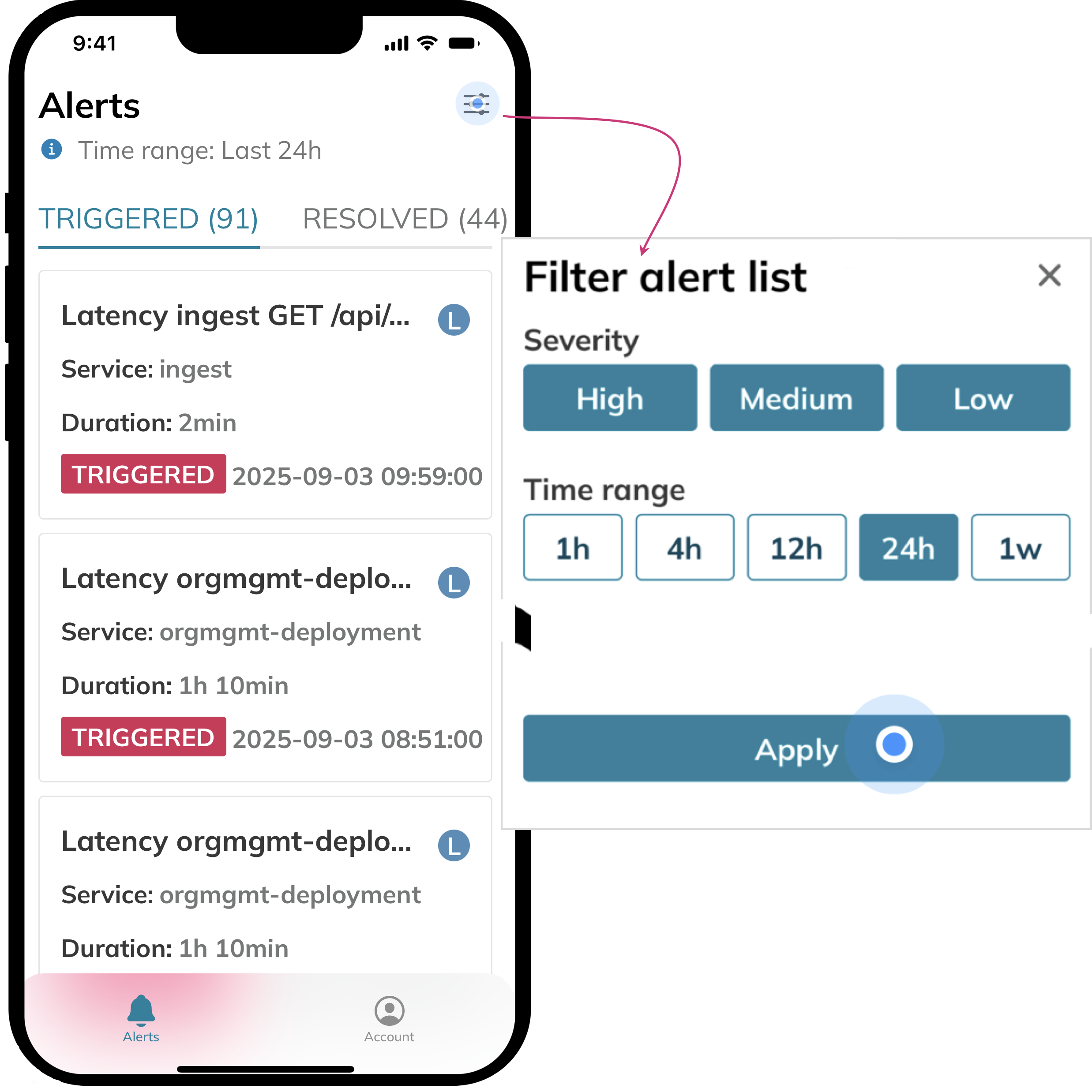
You can filter and sort the alerts list by the following parameters:
- Filter
- Severity (High, Moderate, Low)
- Time range (1h, 4h, 12h, 24h, 1w)
- Sort
- Severity (the most severe first)
- Date (the most recent first)
To apply filters:
- Tap

 at the top-right.
 - Select your desired filters and sorting options.
- Apply the changes.
Alert details
Tap your required alert to open its details screen.
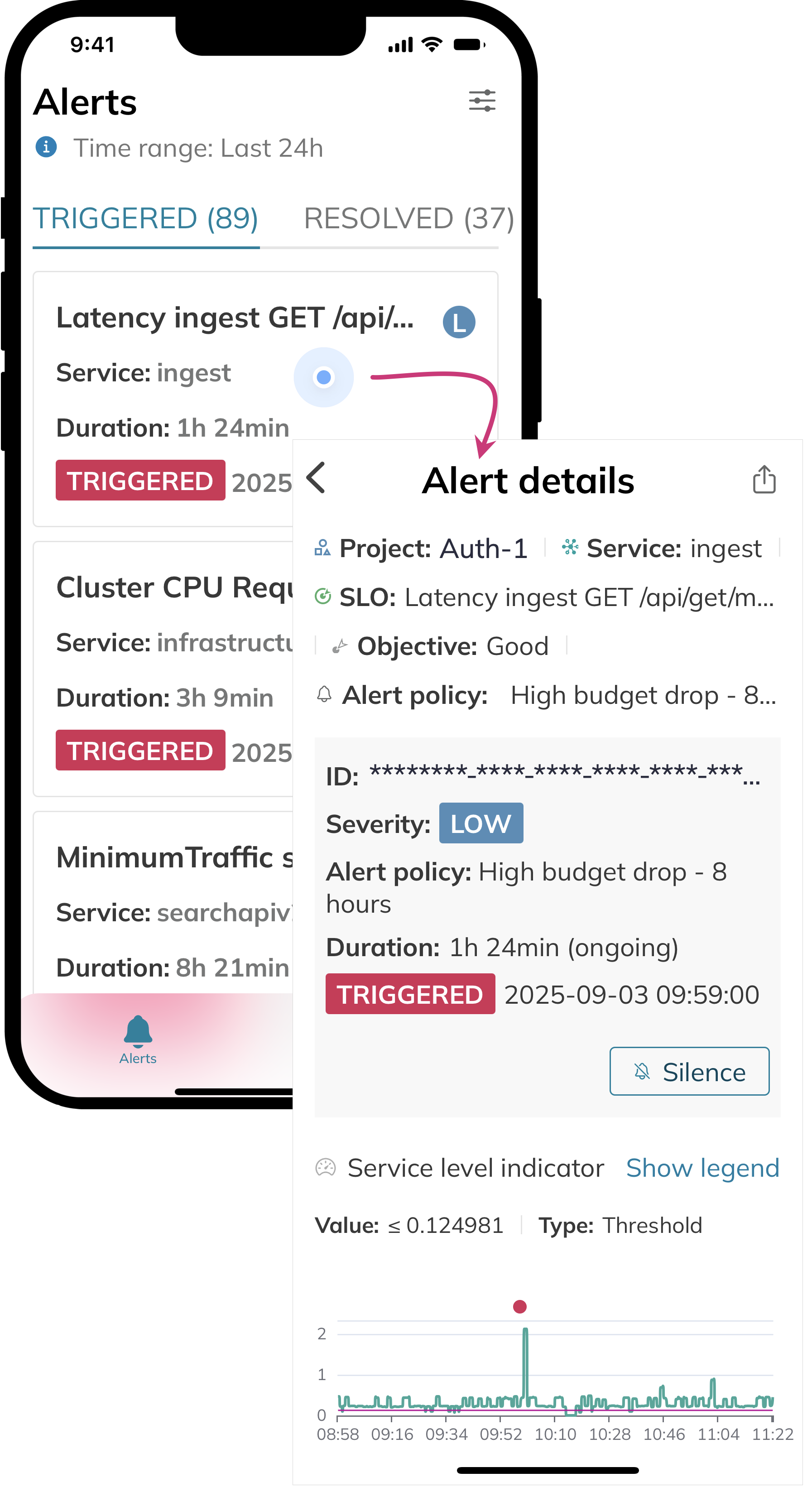
The details screen provides access to key information and actions:
- View comprehensive details of the affected SLO and alert
- Share the alert details
- Silence this alert
- View alert charts
- Access SLO description, links, and attachments (if available)
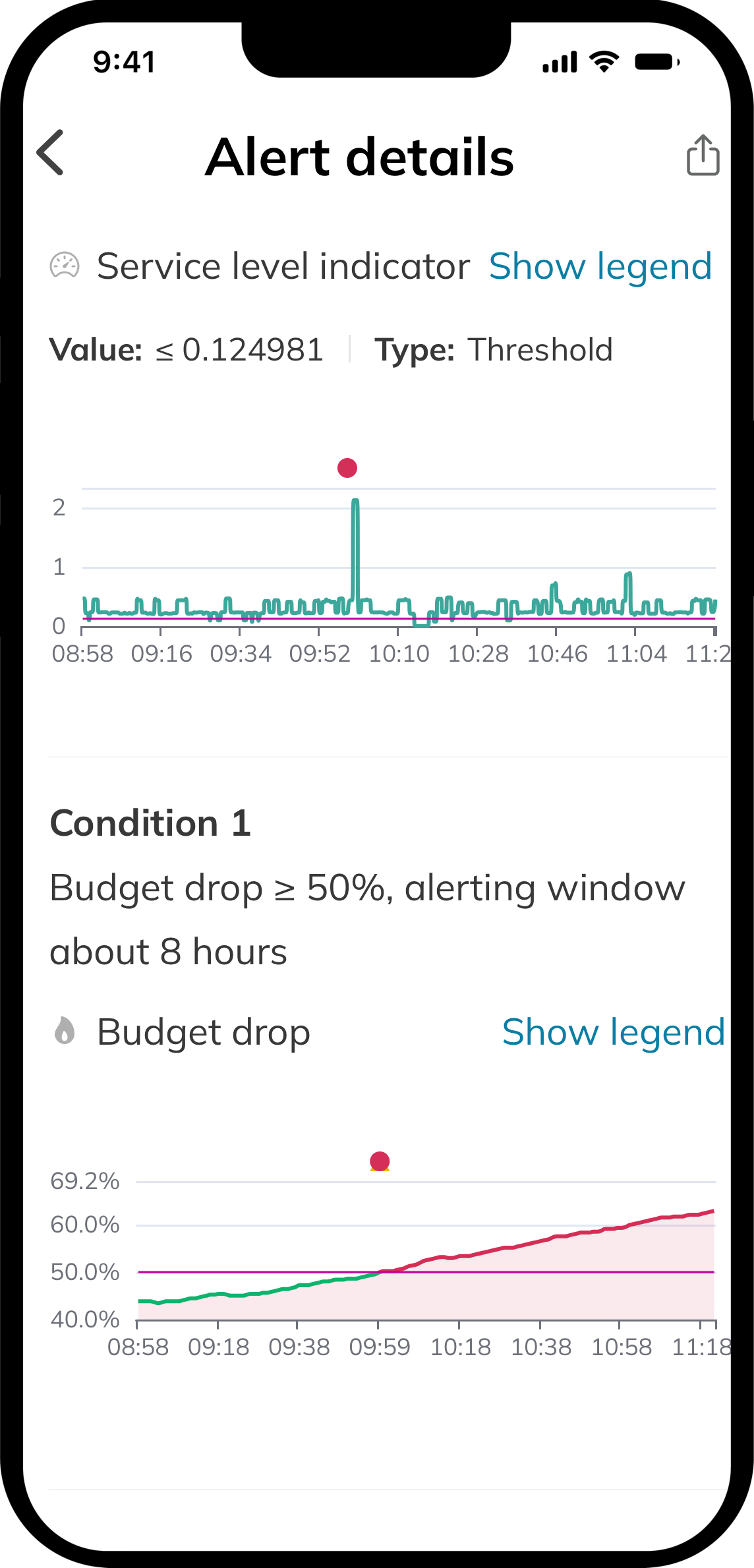
Alert charts display the alert's duration on the SLI chart and condition-specific charts. The condition charts show you the exact moment when alert conditions were met and the reason behind the alert—similar to alert details in the Nobl9 web application.
The red dot above the chart indicates the moment when the alert was triggered.
Account and app setup
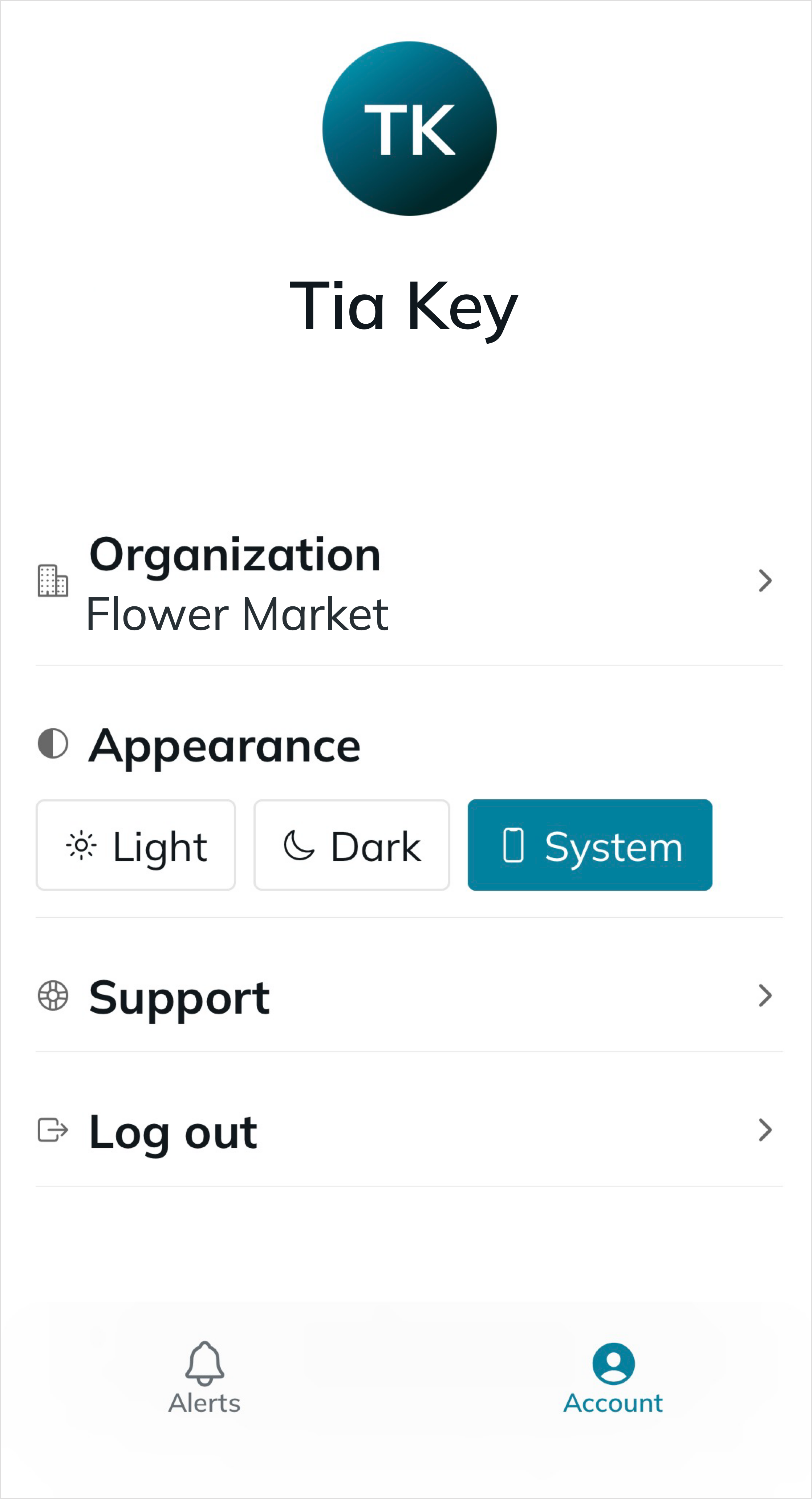
Tap Account at the bottom of the app screen to access your user account. This section provides the following options:
- Switch organization, if available
- Select the app theme—dark, light, or system
- Go to the Nobl9 Support portal